This week, we are being introduced to the software for Canva and Affinity. The main guidelines and document types for layout will also be explored.
What makes a .pdf useful as a file type for sharing?
If I want to save a file I can go back into and edit, should I export a .pdf or save a .indd/.ai/.af file?
If I want a file that's compressed and can't be accidentally changed, should I export a .pdf or save a .indd/.ai/.af file?
What is the benefit to saving as a .af file instead of only exporting a .pdf each time?
How can you access Brand Kit information in Canva? (select all that apply)
How do you access the toolbar that contains options specific to a particular element, such as color, position, or effects?
What document actions are controlled in the Position toolbar? (select all that apply)
Where can you find Templates, Elements, File Uploads, Tools, or 3rd party Apps?
Which toolbar houses file names, export options, file options, and document resizing?
Use the workspace below to answer the next five questions.
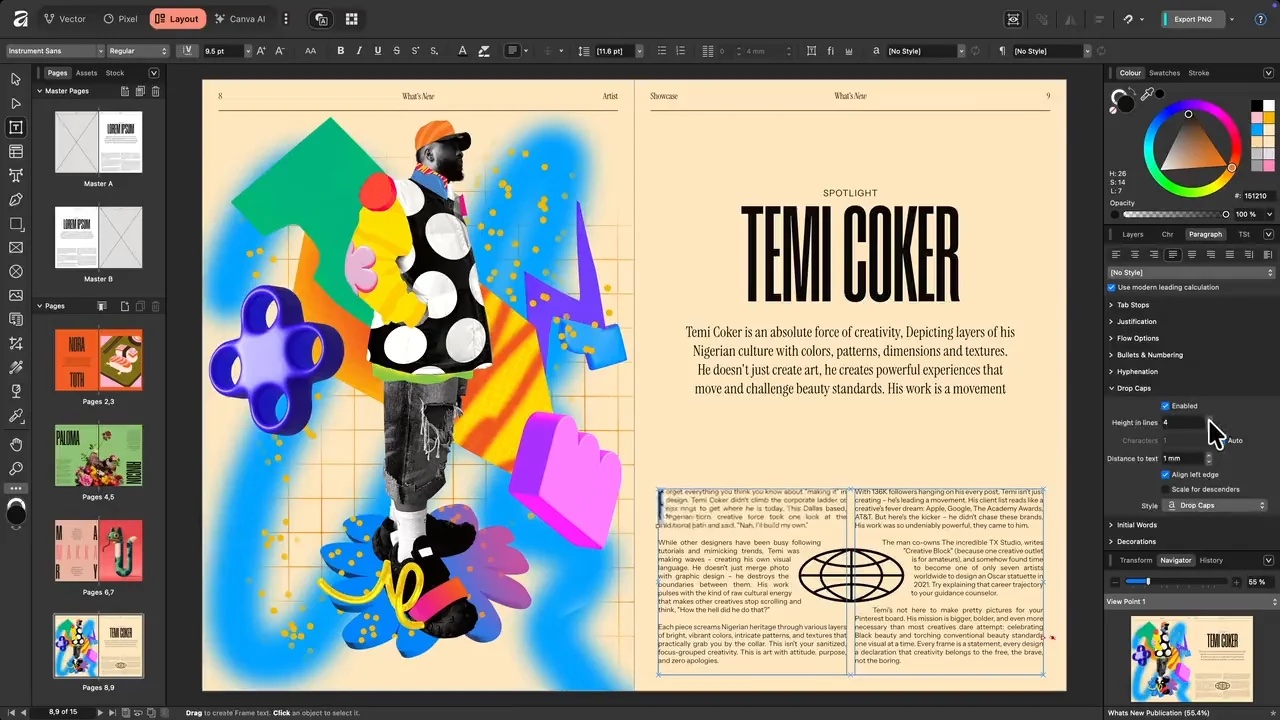
Affinity workspace
Once inside Affinity, where do you find the main toolbar with tools that let you edit your document?
Once inside Affinity, where do you find the menu to open up commands and panels?
Once inside Affinity, where do you find and interact with the document artboard element?
Once inside Affinity, where do you find the panel for properties, layers, and other common controls?
Where can you create a new document from?